
Make Dropdown Menu Folders Clickable in Squarespace (2026)

A comprehensive dropdown menu at the top of your website makes it easy for visitors to quickly find what they need.
However, there are limitations with the native Squarespace dropdown menu.
For example, you can’t click the navigation title—the title you hover on to show the dropdown. This makes it much harder for visitors to get to where they need to go on your site.
The good news? You can make your dropdown menu folders clickable in Spark Plugin, and it only takes three minutes to do!
Here’s how to make the dropdown menu clickable.
Make the dropdown menu clickable with Spark Plugin
Before you begin…
You need to install Spark Plugin on your website. Sign up, and you’ll receive a small snippet of code unique to you.
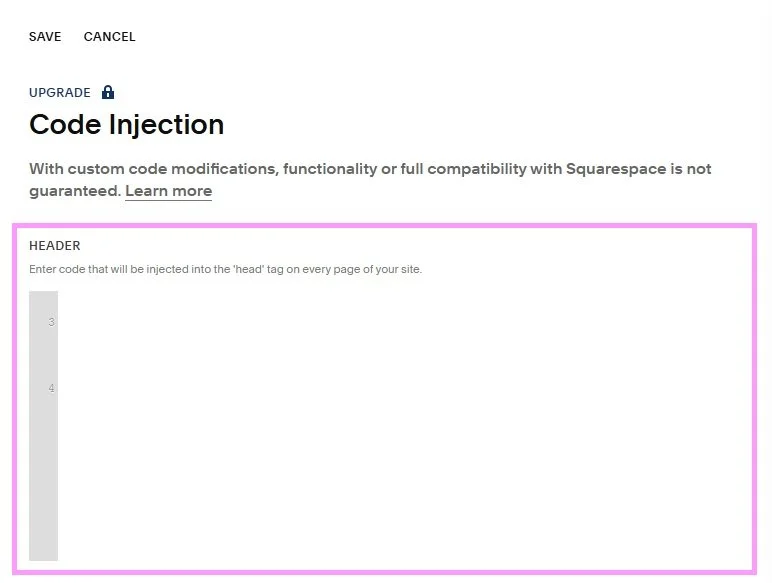
Go to Pages, choose Custom Code, and Code Injection. Paste your code snippet into the HEADER box and click SAVE.
You’re now ready to start using Spark Plugin!
Step #1: Access Spark Plugin

Click on the pink starburst icon to access the Spark Plugin customization menu.
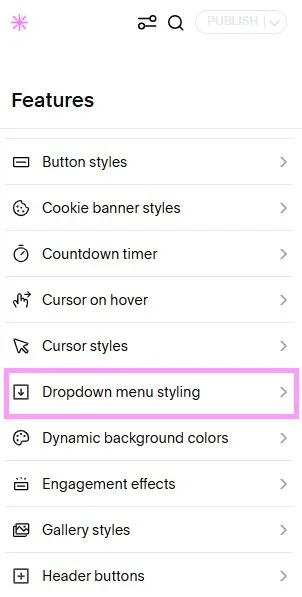
Scroll down to Dropdown menu styling and click.
Step #2: Add a clickable title
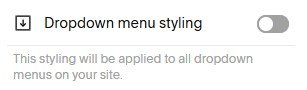
Next, you’ll land in the Header menu. Toggle Dropdown menu styling from off to on.

Toggle Clickable title from off to on.
Step #3: Customize your clickable title
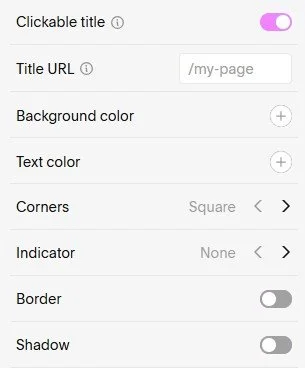
When you select Clickable title, you will need to add a Title URL—this is the link your folder will point to.
Only include the last part of the link; so if your link is www.sparkplugin.com/blog, just type in /blog.
If you have multiple dropdown folders and multiple folders you want to link to, separate the links with commas. If you don’t want a folder link, just put a comma.
For example, if you have three dropdowns but only want a link on the last one, enter ,,/my-page.
If you have three dropdowns but only want a link on the first and last one, enter my-page,,/my-page-2.
While you’re in here, you can customize your dropdown menu further. For example, you can change the background color and text color, as well as add a border or shadow.
Once you’ve customized your dropdown menu to your liking, click the PUBLISH button to save your changes.
And that’s all you need to do to make the dropdown menu folder clickable! Enjoy your new, enhanced dropdown menu!
Discover some more cool ways to customize your dropdown menu