
Squarespace Cancellation Policy Generator: The Simple Guide
When you run a service, whether a restaurant, counselling service, or hair stylist, it’s frustrating when someone cancels an appointment.
Having a solid cancellation policy in place lays out the conditions and penalties of cancelling an appointment, protecting you and ensuring customers are aware of their obligations.
You can create a policy for free with Squarespace’s cancellation policy generator, and the good news is, you don’t need a Squarespace account to use it!
Here’s how to get started with the Squarespace policy generator.
How to use Squarespace’s cancellation policy generator
Important note: Squarespace’s cancellation policy generator is only available for US businesses at this moment in time, as US cancellation guidelines are different from those in the rest of the world.
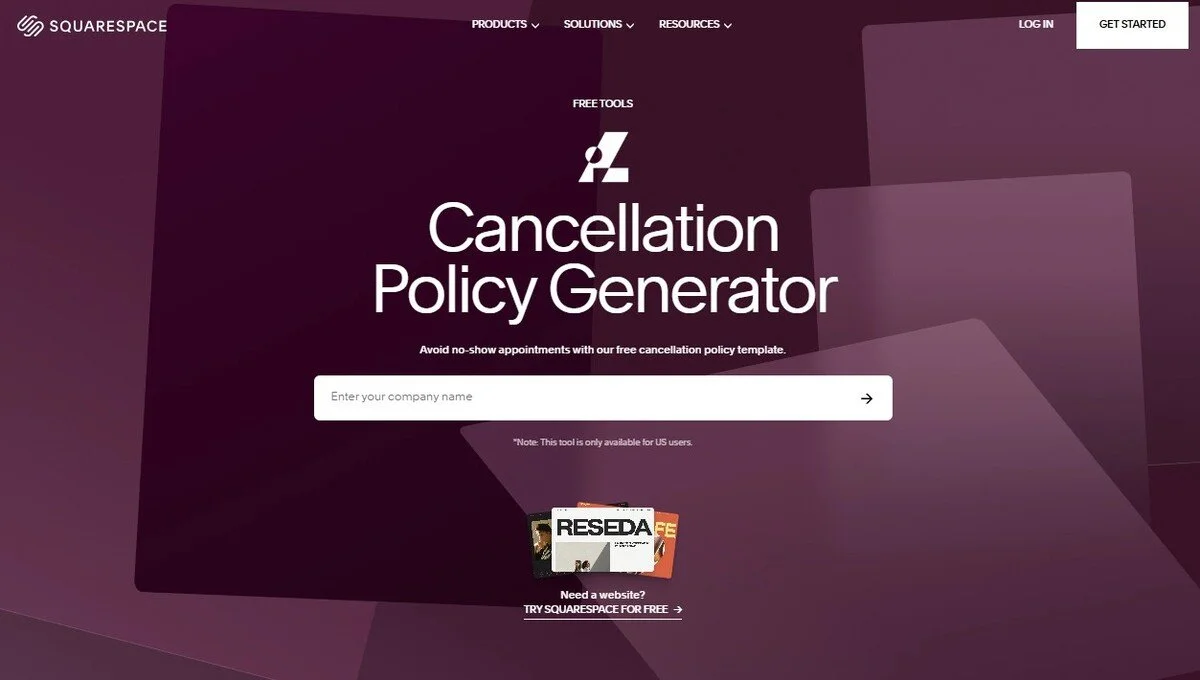
To get started with the Squarespace policy generator, visit the Cancellation Policy Generator page.
Enter your business name in the text box provided and press the arrow or enter on your keyboard.
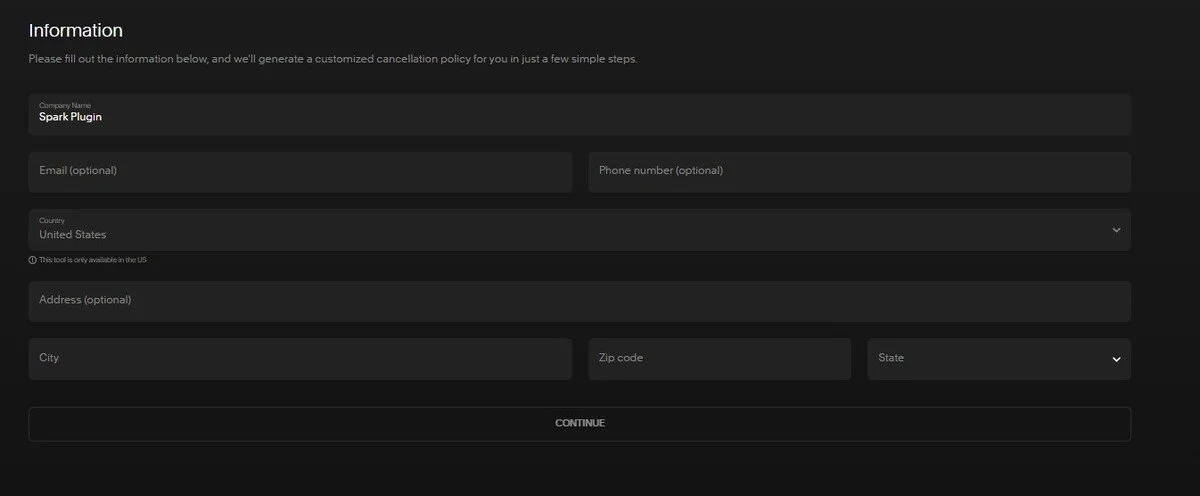
Next, fill in your contact information, including your business address, email, and phone number.
Most of this information is optional, but the more information you can provide, the easier it will be for a customer to get in touch with you if they need to cancel.
Press CONTINUE when you’re done.
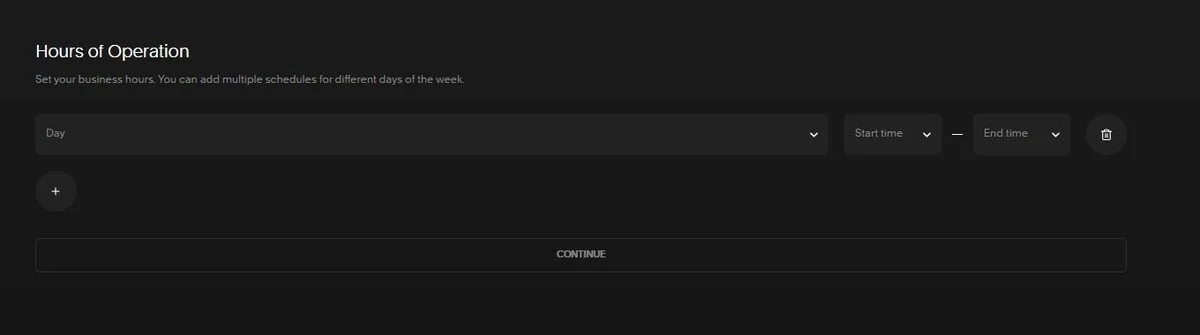
Fill in your business hours and press CONTINUE.
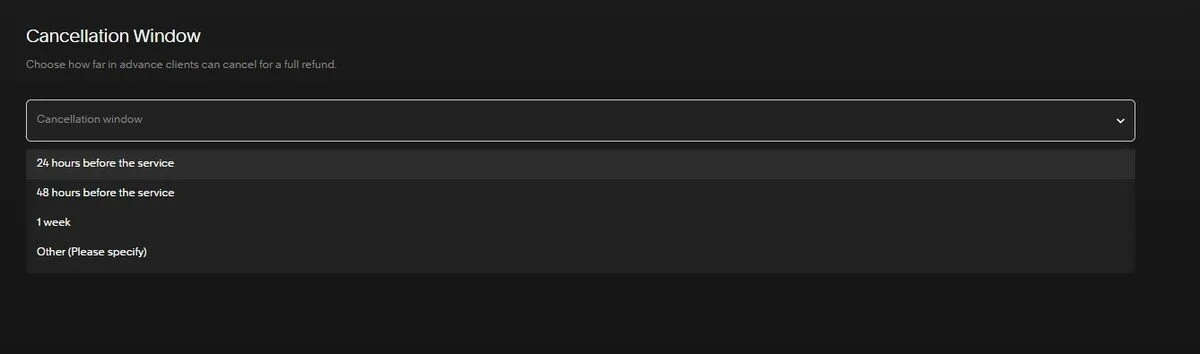
Choose how far in advance customers can cancel for a full refund. You can choose from the pre-defined settings or add your own by choosing Other. Press CONTINUE.
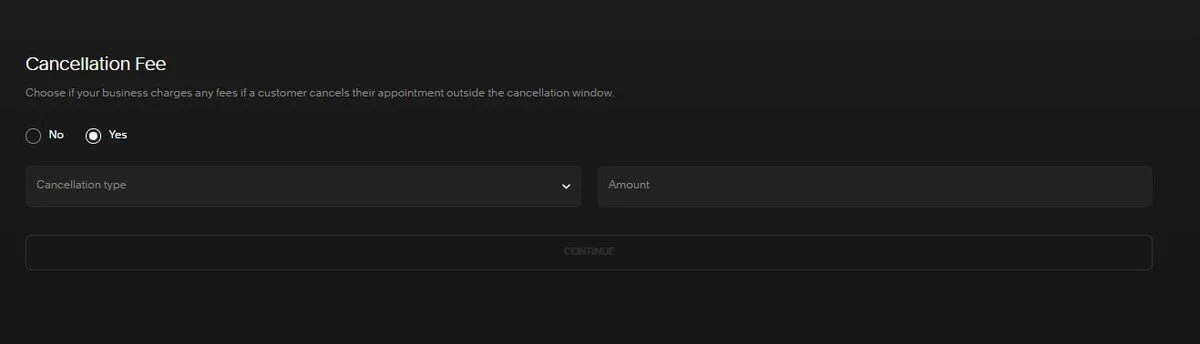
Advise whether you charge a cancellation fee if customers cancel their appointment outside of the cancellation window. If you choose Yes, you can choose from a flat rate or a percentage of the cost.
Press CONTINUE to move forward.
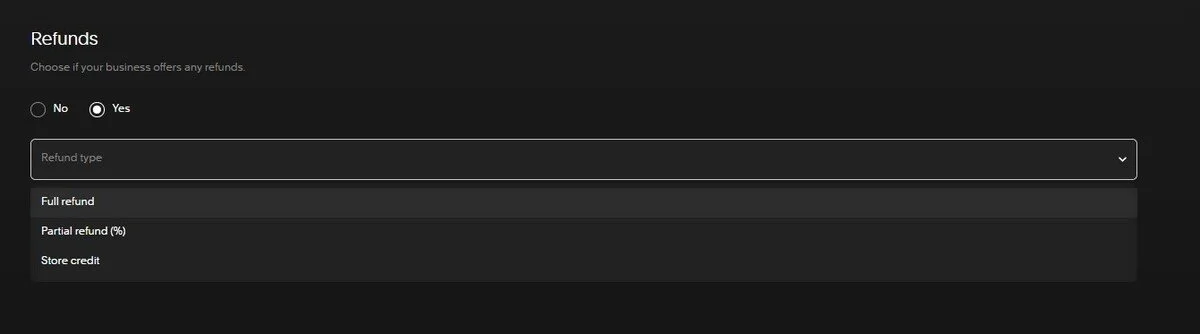
Finally, choose if your business offers any refunds if a customer cancels. If you choose Yes, this can be a full refund, a partial refund, or store credit.
Press GENERATE MY POLICY
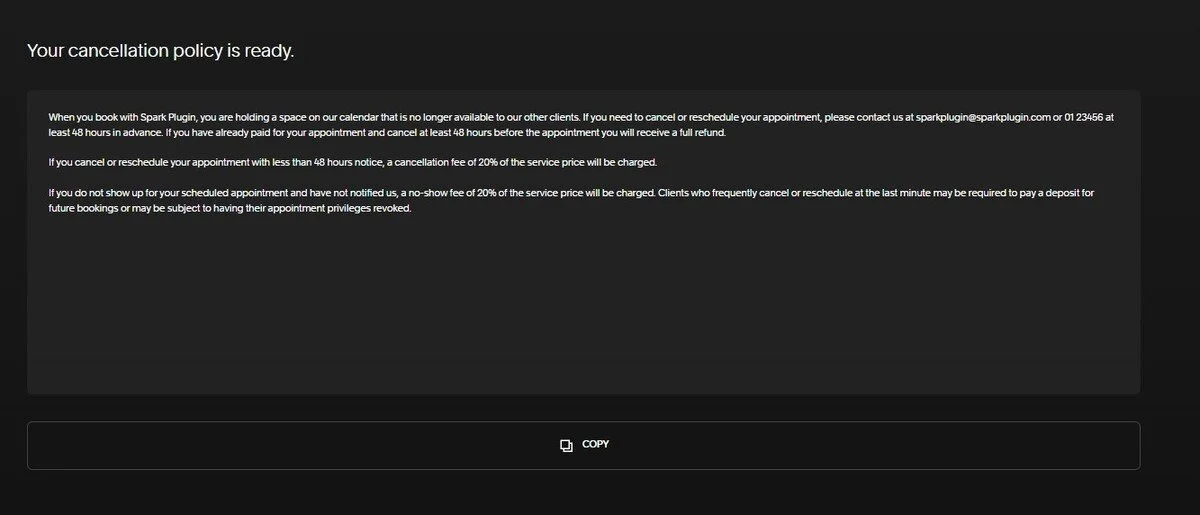
Squarespace will provide you with a short cancellation policy you can copy directly into your website or a document. You don’t need to log in or create a Squarespace account to access it.
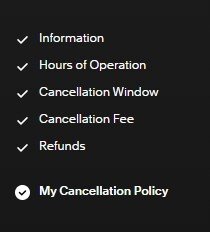
You can go back to any stage of the process by clicking the links on the left-hand side of the screen if you want to tweak your policy.
How to promote your cancellation policy
We recommend promoting your cancellation policy in as many places as possible so customers know what is expected of them.
You can:
Add it to your booking software of choice
Send it to customers by email or SMS when they book
Put the policy on a page on your website and link to it from your footer
Display it in your building
Now you know how to create a cancellation policy with the Squarespace cancellation policy generator! Why not give it a try?
p.s Squarespace offers lots of other cool free tools for businesses, like the Squarespace logo maker.