
How to Add an RSS Feed to Squarespace: 3 Quick Steps (2026)

Adding an RSS feed to your Squarespace site can be a great way of keeping your site visitors up to date without having to constantly update your web pages.
Here’s how to add an RSS feed to Squarespace in three simple steps.
Squarespace RSS feed: How to add one
1. Get your RSS feed link
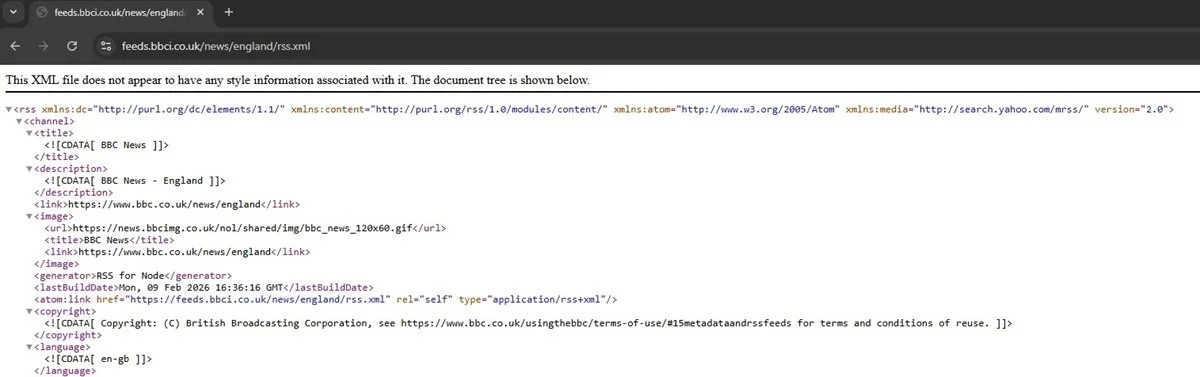
Go to the relevant website and copy the RSS feed link you want to add to your Squarespace site.
Your link should end with rss.xml.
2. Go to the page you want to add your RSS feed to
Go to your Squarespace site and to the page you want to add your RSS feed to.
Click EDIT.
3. Embed your RSS feed
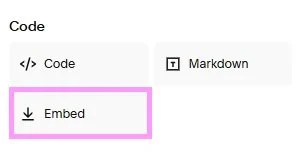
Go to the part of your page you want to add your RSS feed to and click Add Block. Under Code, choose Embed. Select the pencil icon to edit.
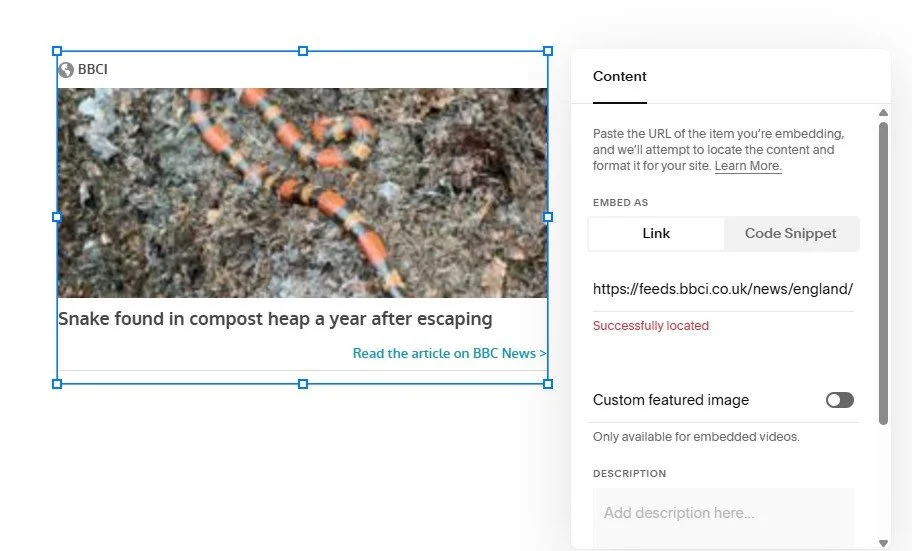
Make sure EMBED AS LINK is selected and paste in your RSS feed link. Squarespace will then show your RSS feed on your page.
SAVE your page, and that’s all there is to it!
How to add a Squarespace blog RSS feed
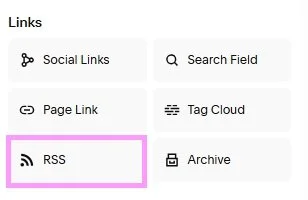
As well as linking to external RSS feeds, you can use RSS blocks to link to an RSS feed of your blog page—ideal if you want to promote your blog posts on another part of your site!
Here’s how to add a Squarespace blog RSS feed:
Go to the page you want to add a Squarespace blog RSS feed to and click EDIT
Click Add Block where you want to add your RSS feed, and under links, choose RSS
Click the pencil icon to edit and choose which blog you want to link to (if you have multiple blogs)
SAVE your page
Now you know how to add a Squarespace RSS feed—two different ways!