

When you use Squarespace Shipping, you have the option of buying shipping labels directly from Squarespace through UPS and USPS.
However, if you’re not in the US or you want to take advantage of deals on shipping labels, it’s worth working with a third-party provider.
One of these providers is ShipStation. And in this short guide, we’ll show you how to connect ShipStation to your Squarespace e-commerce site in three easy steps.
Want to use Shippo instead? Here’s how to get started!
ShipStation and Squarespace: How to get set up
Step 1: Sign up for ShipStation
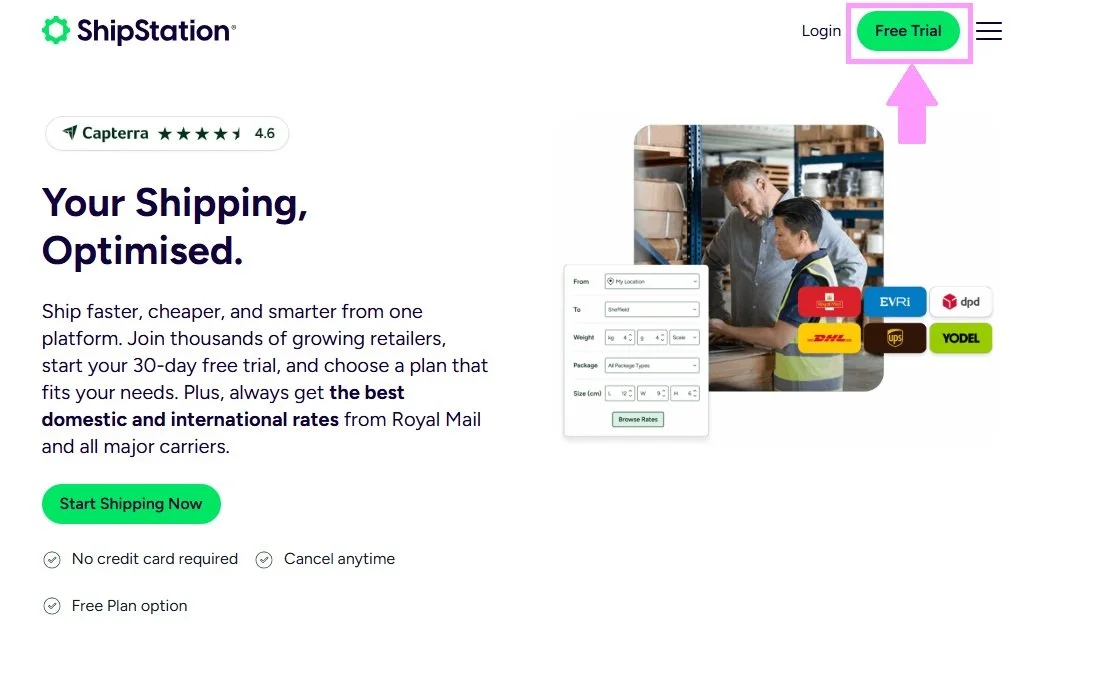
Before you get started, you need to visit the ShipStation website and create an account. Click on the green Free Trial button to get signed up.
There’s a free version of ShipStation, which allows you to create 50 shipments.
Alternatively, you can take advantage of a free 30-day trial if you want to check out some of the more advanced features the platform offers—no credit card required.
Step 2: Connect ShipStation to Squarespace
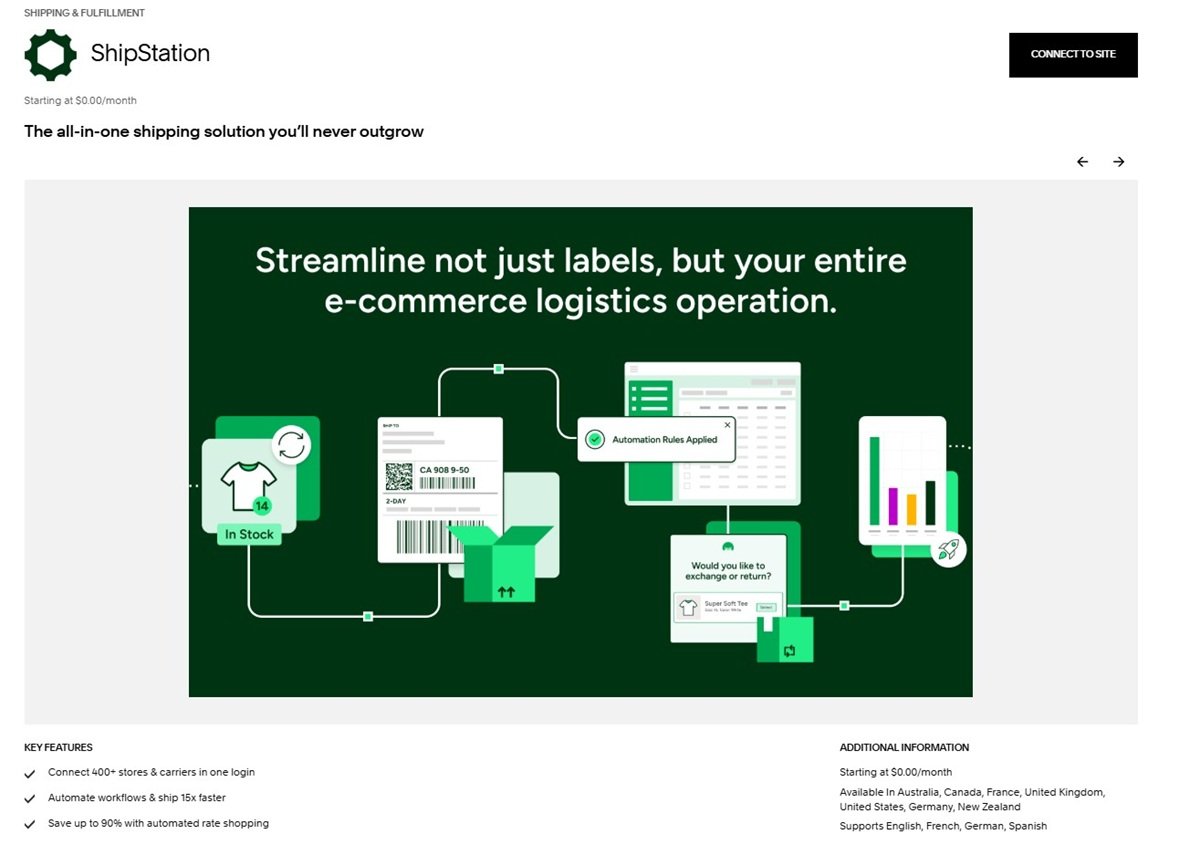
The next step is to connect the ShipStation extension to your Squarespace website.
Click CONNECT TO SITE—you’ll be prompted to create a ShipStation account if you haven’t already.
Confirm which Squarespace site you want to connect ShipStation to and click ALLOW to grant permission.
Step 3: Log in to ShipStation
Go back to ShipStation and log in to your account.
There you’ll be able to see all your Squarespace orders. Click Refresh if you can’t see them.
To create a shipping label, click the Orders tab, check the orders you want to ship, and click Create Labels.
Now you know how to connect ShipStation and Squarespace – enjoy taking advantage of cheaper deals on your shipping labels!