
Hide Price on Sold Out Products in Squarespace (2026 Guide)
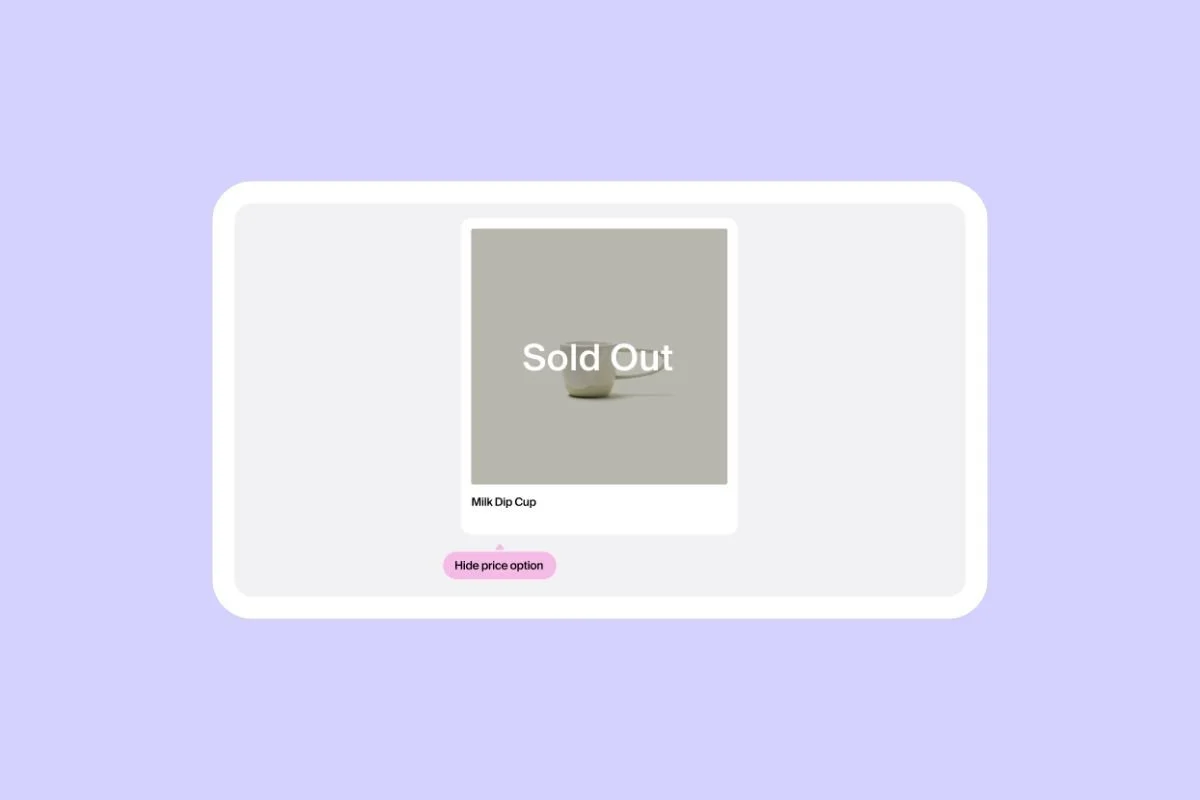
Hiding the price on sold out items in your e-commerce store can be a smart move.
It reduces customer frustration and can make customers more eager to buy your products once they’re back in stock.
While you can’t hide the prices on sold out products organically in Squarespace, you can using Spark Plugin.
Discover how to hide the price on sold out products in Squarespace in just three minutes.
How to hide the price on sold out products in Squarespace
Step #1: Add Spark Plugin
If you already have Spark Plugin on your website, you can go to the next step.
When you sign up for Spark Plugin, you’ll receive a snippet of code that’s unique to you.
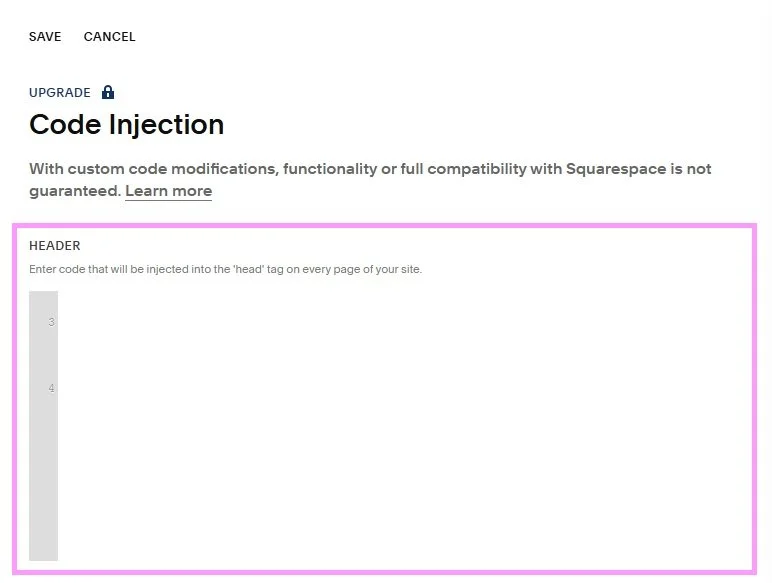
Go to Pages and scroll down to the bottom of the menu. Select Code Injection and paste your code snippet into the HEADER box. Click SAVE when you’re done.

You’ll see a pink starburst in the top right-hand corner of your website. If you can’t, log out of your website and you should be able to see it.
Step #2: Access the Commerce menu in Spark Plugin
Click on the pink starburst icon from any page of your site. This will open up the main Spark Plugin menu.
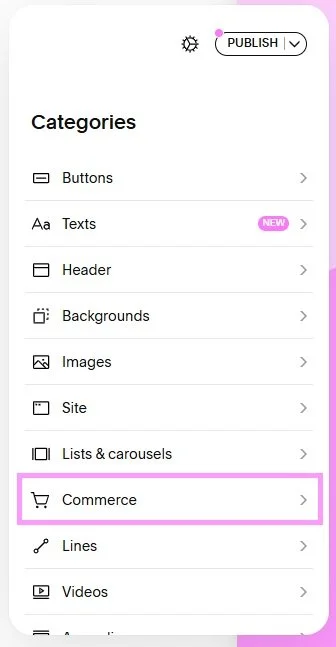
Select Commerce to open the commerce menu.
Step #3: Hide your price
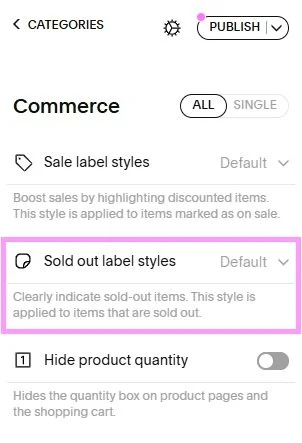
Go to Sold out label styles.
If you don’t already use Spark Plugin’s sold out labels on your website, you’ll see the Default option. A heads up—you won’t be able to hide prices if you have Default enabled.
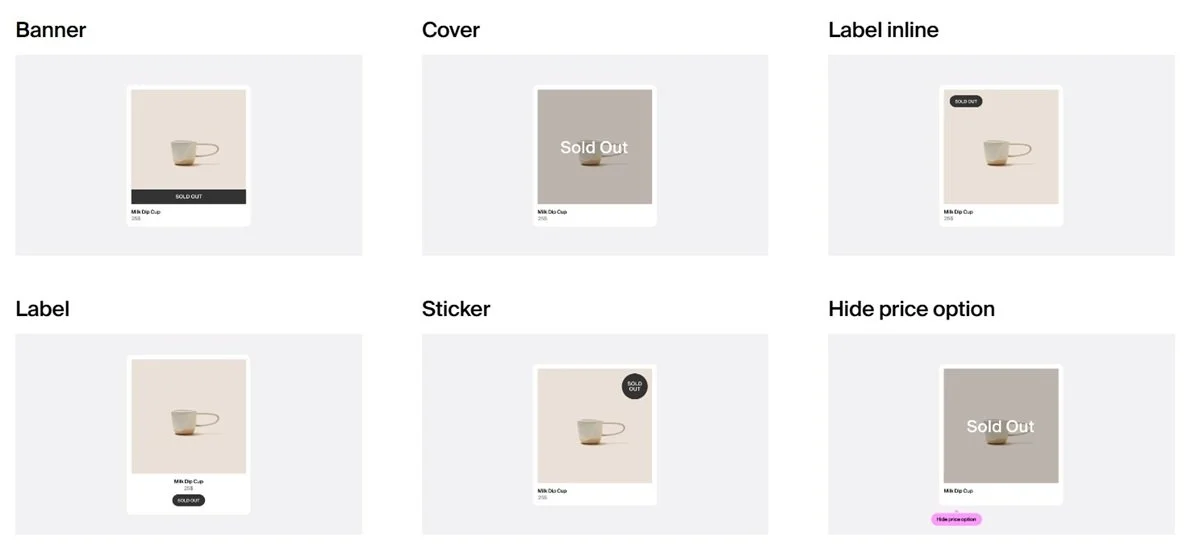
To resolve this, choose a sold out label style. This provides you with an eye-catching way to tell customers that a product is out of stock, including banners, stickers, and image overlays.
When you have a sold out label style in place, you’ll uncover an additional menu that will allow you to customize your label to match the style of your site.
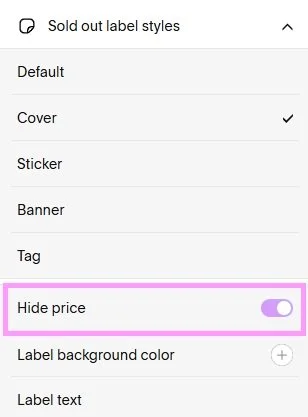
Toggle Hide price from off to on and click out of the Spark Plugin menu to save your changes.
Now when a product’s stock level goes down to zero, the ‘sold out’ label will automatically appear and the price will disappear.
If you want to start showing the price again, just repeat steps #2 and #3 and toggle Hide price from on to off.
Now you know how to use Spark Plugin and Squarespace to hide the price on sold out items.
Don’t forget, Spark Plugin offers over 100 code-free customizations to transform the look and feel of your e-commerce store!