
How to Add Product Pages to Squarespace
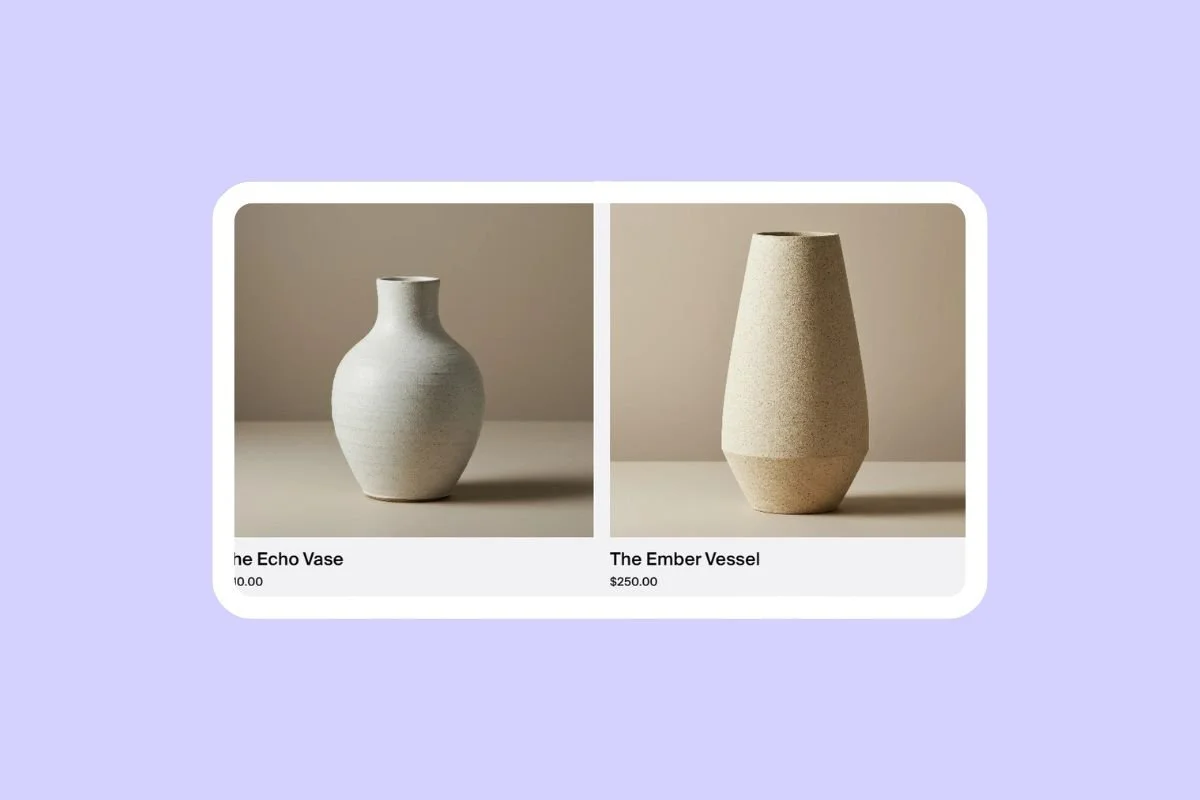
One of the things we love about Squarespace is that it’s great for e-commerce!
It’s really easy to sell online, and you can set up a product page in no time at all.
Looking to get started with selling online?
In this article we’ll show you how to add a product page to your Squarespace site, the options available, and how to customize your page to match your unique style!
The takeaway
You can sell products on any Squarespace website and plan
To sell online, you need to create a store and add product pages to it
You can have as many stores as you like on your website
You can customize your product pages and store page to your liking, plus you can use Spark Plugin to change the look and feel of your pages too!
How to create a product page in 3 easy steps
Step #1: Create a store page
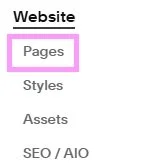
Go to Website and click on Pages.
Click on the plus sign under Main Navigation and in the pop-up menu, under Sell, select Products.
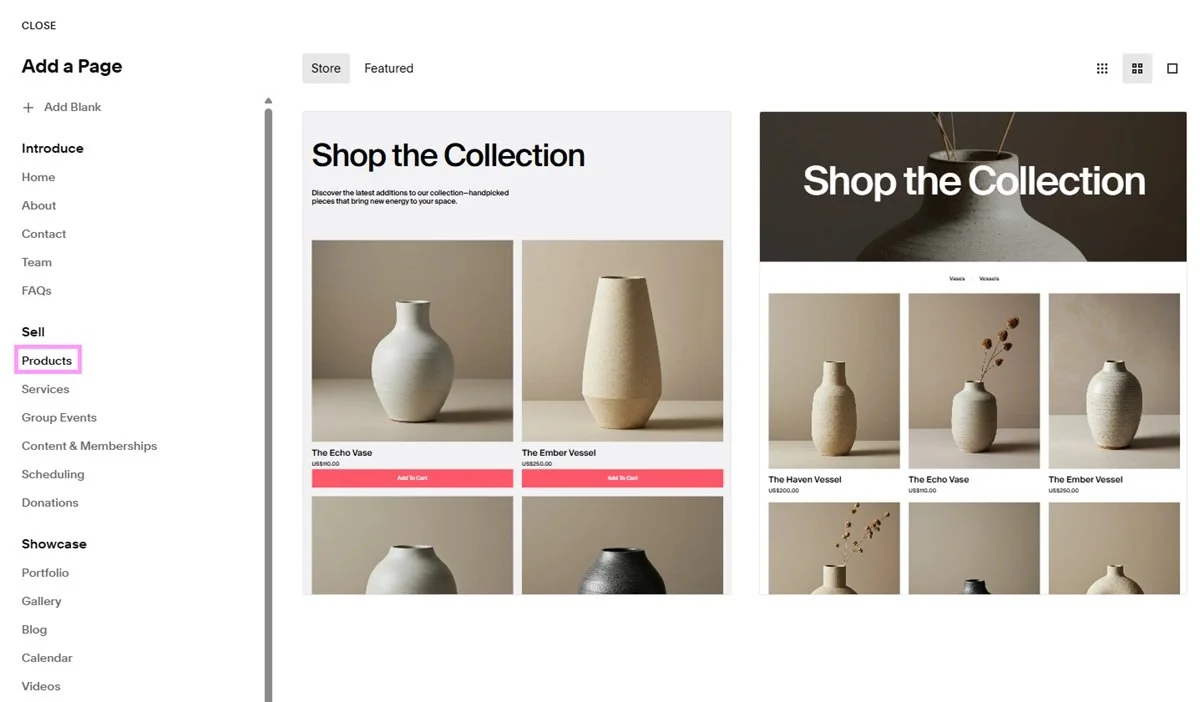
Choose the template you want to get started with. You can customize this template to match your website later.
Squarespace will then add a new store page to your navigation.
Step #2: Add your products

Hover over the new store you’ve created in the Pages menu and click the arrow button to access a list of products in your store.
Click the plus sign to add a new product.
(You can also edit an existing product by clicking on it.)
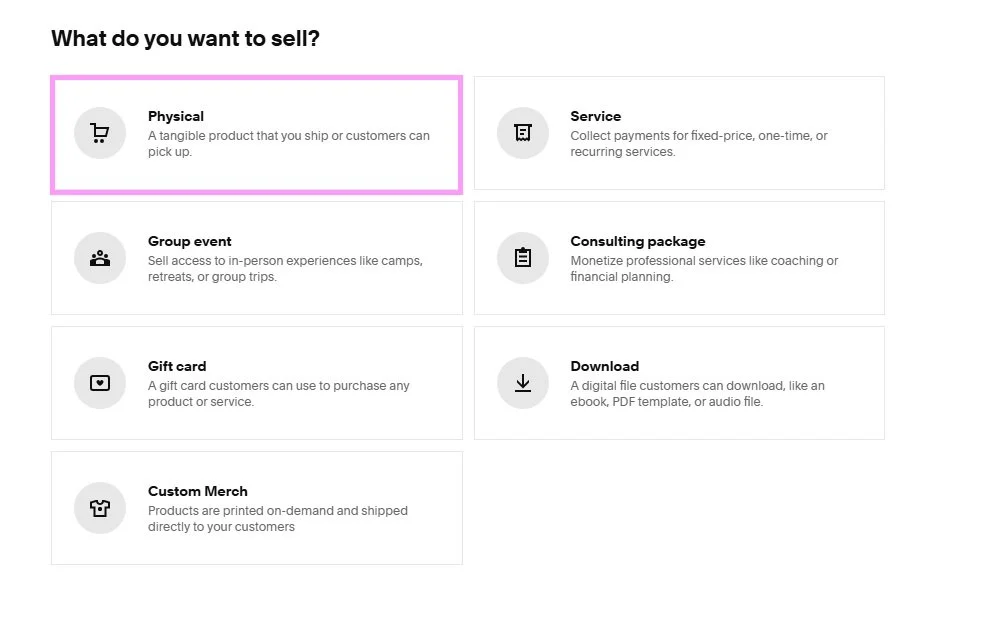
Choose Physical in the menu.
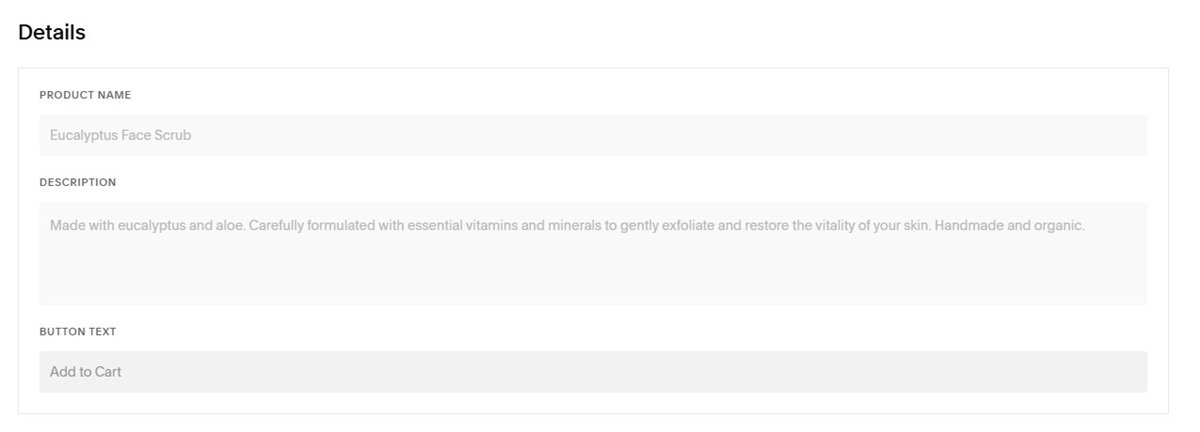
Complete the product details requested, including:
Name
Description
Button text (this is Add to Cart by default)
Images (you can have up to 100 images per product, but bear in mind that the more images you have, the more slowly your page will load)
Product price (click On Sale if you want to provide a sale price)
Quantity limits (how many products customers can buy in a single order)
Stock levels (click Unlimited Stock if you have unlimited stock levels. If you have an offline store and use an extension like SKU IQ or Inflow Inventory, you can sync stock levels between your e-commerce store and offline store )
SKU number (Squarespace assigns one to you, but you can override it if you have an existing SKU). You can also add GTIN and MPN numbers if you have them
Product variants (here you can add different colors, sizes, etc of the same product. A product can have up to six options and up to 250 variant combinations)
Weight and dimensions (for product fulfilment)
Categories and tags (to make it easier for customers to find what they need)
Related products (for upselling and cross-selling)
You can also create a form to collect extra information from shoppers, for example, if you offer product personalization.
You can also set up a product subscription to encourage customers to buy on a recurring basis.
When you’re done, hover over the SAVE button. Here you can:
Publish your product page
Save your page and hide it for publishing later
Schedule your page to go live later
Step #3: Customize your store
You can customize both your store page and product page. To do this, go to the relevant page and click the black EDIT button.
Hover over each block or section to see what you can do. For example, you can edit text, change the color scheme, or change whether products are displayed in a list or a grid.
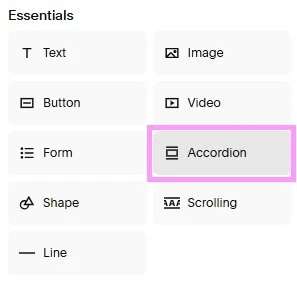
You can also add new blocks and sections. For example, if you want to add a frequently asked questions section to the bottom of a product page, just choose ADD BLOCK and choose the Accordion block.
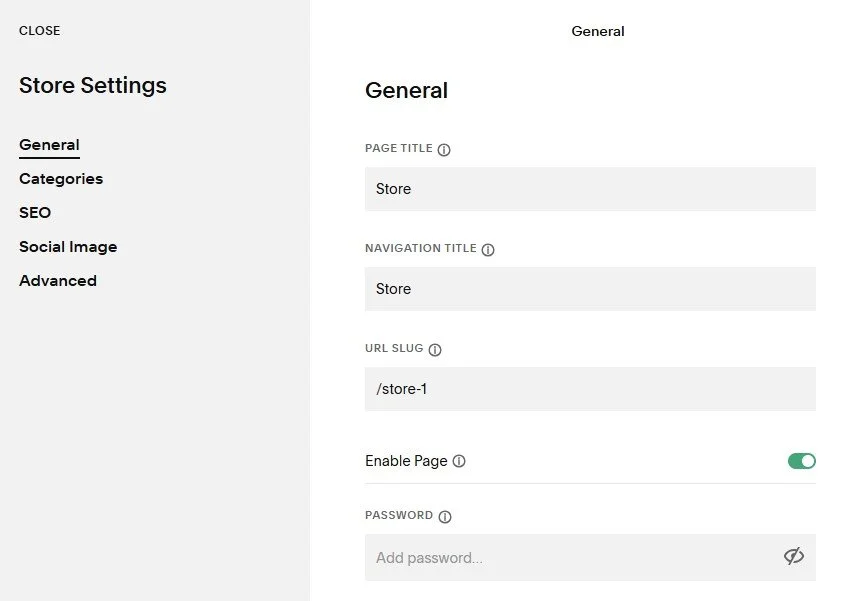
You can also customize your store by hovering over it in the Pages menu and clicking the cog icon to access settings. From here you can:
Change the name of your store
Change the URL of your store
Edit and add product categories
Add a password to your store
Add custom code to your page header
Don’t forget…
…You can also use Spark Plugin to customize your store!
To do this, just click on the pink Spark Plugin icon at the top right-hand corner of your page.
Here are some of our favorite customizations to get you started:
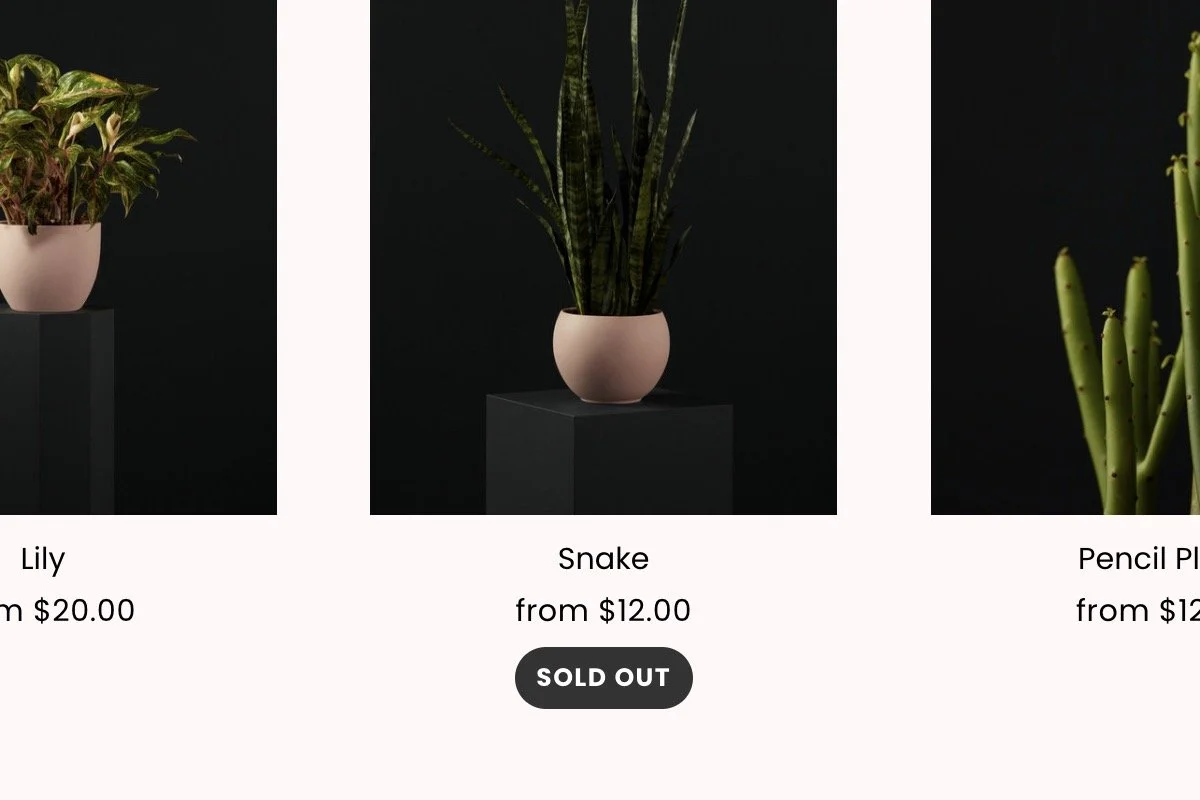
Add eye-catching sale and sold out labels
Add a scroll indicator to encourage visitors to discover your products
Add live chat to answer any questions visitors may have
Add a search bar to make your products easier to find
Discover over 100 amazing Spark Plugin customizations
Product pages in Squarespace: Frequently asked questions
How many stores can I set up in Squarespace?
You can set up as many stores as you like.
However, you are limited to 10,000 commerce products per site. If you want to sell more than this, you will need to create another website.
Can I sell products using any Squarespace plan?
Yes. You can sell products across all Squarespace plans.
Bear in mind that you need to pay transaction and payment fees for all products you sell online. These rates vary depending on the plan and payment processor you use.
Am I restricted to just selling physical products?
No, you can sell services, tickets to events, digital downloads, and custom merchandise. You can also sell gift cards.
Can I change the URL of a product page?
Yes. Squarespace generates an URL for you by default, but we recommend changing it to something more memorable.
To change the URL, edit a product page and go down to the Marketing section. Click EDIT to make changes.
If you’re editing an existing URL, we recommend setting up a redirect.
What payment processors can I use in Squarespace?
You can use Stripe, PayPal, or Squarespace Payments.
Now you know how to add a product page to your Squarespace site. What will you sell online and how will you style your product pages?